

Local SEO · 5 min read
Google Review Link and QR Code: 3 Simple Steps to Get Both
 By Adrian Martinez ·

On this page
To get your Google review link, sign in to the Google Account that manages your Business Profile and find the profile on Google Search. Select Read reviews, then Get more reviews, then Copy. On a computer browser, the same panel shows a quick response (QR) code to print on receipts, cards and truck decals.
This guide covers where the link lives, how to save the QR code and where to put both. For when to ask, read our guide on how to get more Google reviews as a contractor.
What Is a Google Review Link?
A Google review link is a web address that takes a customer to your Business Profile to leave a review. Google builds it for you, along with a QR code customers can scan to leave a review. On its help page on review links, Google says you can create and share a link or QR code to make reviews easier for customers.
The link saves your customer from searching for your listing and hunting for the review button. One catch: Google's review tips state that customers must be signed in to a Google Account to leave a review.
How Do I Get My Google Review Link?
You get it from your own Business Profile in three short steps. The first is to sign in to the Google Account that manages the profile. Google's page on finding your business on Google says you must be signed in to that account to find your profile.
Three steps to your Google review link and QR code
Step 1
Sign in to the account that manages your profile. Search Google for "my business".
Step 2
Select Read reviews and then Get more reviews.
Step 3
Select Copy for the link. On a computer, right-click the QR code to save it.
Here are the same steps in plain text:
- Sign in and search Google for your business name and city, or for "my business".
- On your profile, select Read reviews and then Get more reviews.
- Select Copy to copy the link, or save the QR code from the same panel.
Save the link in your job software's message template so the whole crew sends the same one. If a label on your screen reads differently, follow your screen.
How Do I Make a Google Review QR Code?
You do not need to make one yourself. After you select Get more reviews, Google gives you the link and a QR code to share. Google notes that review QR codes can only be generated on a computer browser, not on mobile devices.
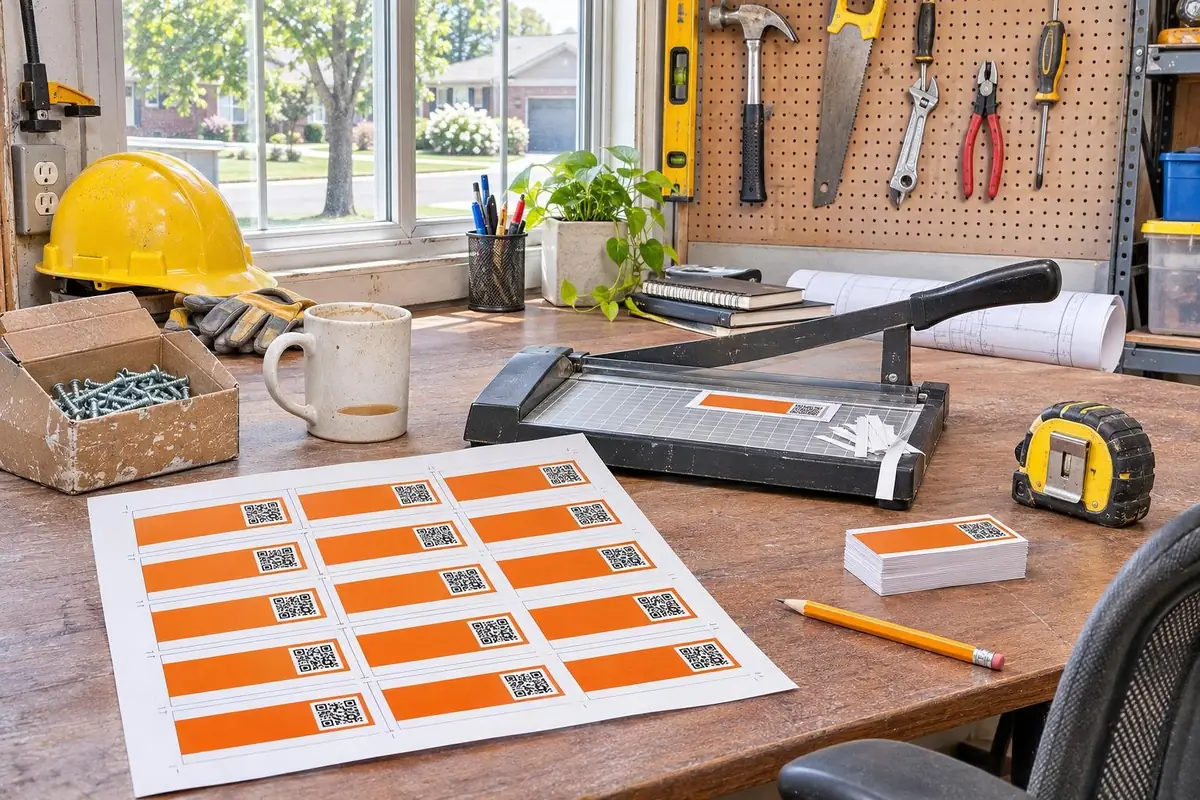
To save it, right-click the QR code and select Save image as. Send that file to whoever prints your cards or decals. If your printer needs another file type, any QR code tool can encode the same link. Scan the printed proof with your own phone before a full print run.
Where Should Contractors Use the Link and the QR Code?
Use the link anywhere the customer will tap and the QR code anywhere they will scan. Google suggests receipts, thank-you emails, the end of a chat and a printed QR code on display. Its guide to sharing review links adds customer emails and printed media. For a trades business, those places are your paperwork and your trucks.
| Where the customer sees it | Use | Why it fits |
|---|---|---|
| Text message after the job | Link | Read and tapped on a phone |
| Thank-you or receipt email | Link | Google lists both |
| Printed receipt or leave-behind card | QR code | Paper gets scanned |
| Truck decal or yard sign | QR code | In view at the end of the job |
Send the text soon after the job, while the work is fresh. Keep the QR code for anything printed.
What Rules Apply When You Share a Review Link?
The rules cover how you ask, and the link itself changes none of them. Google's Maps content policy does not allow businesses to offer incentives, such as payment, discounts, free goods or services, in exchange for a review. It also bans discouraging negative reviews and asking only happy customers.
The same policy says merchants should not require or pressure users to leave ratings or write reviews while on the premises. What it does allow is asking customers to post content that reflects a genuine experience. So send the same link to every customer and let them decide.

Can Someone Set This Up for You?
Yes. Review generation setup is part of our search engine optimization (SEO) and Google Business Profile service for contractors. We set up review requests that go out after every job, so the stars keep coming. If your profile itself needs work first, start with our guide to Google Business Profile for contractors.
Frequently Asked Questions
How do I get my Google review link?
Sign in to the Google Account that manages your Business Profile and find the profile on Google Search. Select Read reviews and then Get more reviews. Select Copy, and the link is ready to paste.
How do I make a review QR code?
Open the Get more reviews panel on a computer browser. Right-click the QR code and select Save image as. Google says review QR codes cannot be generated on mobile devices.
Do I need a Google review link generator?
No. Google builds the link and the QR code inside your Business Profile, so you do not need a separate tool for either. A generator only helps if your printer needs another file type.
How do I send a Google review link to a customer?
Paste it into a text or email after the job. Google also lists WhatsApp messages and Facebook posts as ways to send review requests.
Next Steps
Copy your link, save the QR code on a computer and test both on your phone. If you would rather hand the review routine to someone else, our SEO and Google Business Profile team can set it up for you. Call us at 866-898-5439 and tell us your trade and your area.
Keep reading
More on Local SEO
Keep going with related guides from our library.

How to Choose an SEO Company for Contractors: 7 Essential Questions
What a good SEO company for contractors should do each month, the questions Google suggests asking before you hire, the red flags to avoid and how to check the results yourself.
Read the Guide
SEO for General Contractors: 6 Essential Steps to Win Bigger Projects
This practical guide to SEO for general contractors covers six steps. Choose the projects you want, build a page for each renovation type and turn finished jobs into project pages. Then set up your Business Profile, ask for reviews and track results in Search Console.
Read the Guide
Google Business Profile Suspended? 6 Steps to Appeal
Find the guideline problem behind a suspended Google Business Profile, fix it, gather documents that match the profile and file a reinstatement appeal.
Read the Guide